
How to Add a Signature in Outlook 2026
Before You Start: Which Version of Outlook Are You Using?
The steps differ depending on your setup. Check which applies to you:
- Outlook for Windows (Microsoft 365 or standalone)
- Outlook for Mac (Microsoft 365 for Mac)
- Outlook on the Web (outlook.com or your organization's portal)
- Outlook Mobile (iOS or Android app)
Each version has a different location for signature settings. The sections below cover all four.
How to Add a Signature in Outlook for Windows
This applies to Outlook for Microsoft 365, Outlook 2021, Outlook 2019, and Outlook 2016.
Step 1: Open Outlook. Click New Email in the top left to open a new message window. Signature settings are only accessible from inside a message window.
Step 2: In the message window, click the Insert tab in the ribbon.
Step 3: Click Signature in the ribbon, then click Signatures from the dropdown.
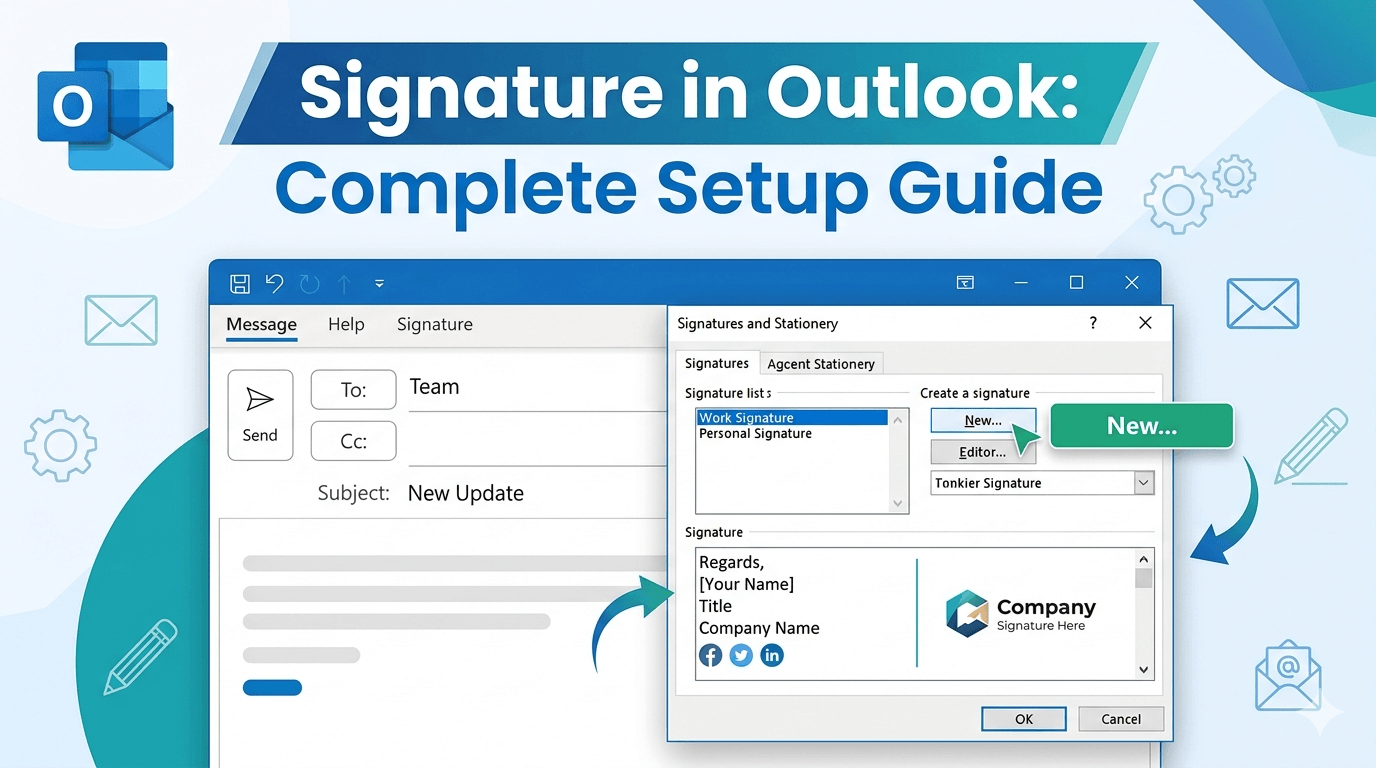
Step 4: The Signatures and Stationery window opens. Click New under the Email Signature tab.
Step 5: Give your signature a name for your own reference, such as Work or Personal. Click OK.
Step 6: In the Edit Signature box at the bottom, type your signature content. Use the formatting toolbar above to adjust fonts, sizes, colors, bold, italic, and alignment.
Step 7: Under Choose Default Signature on the right, select which email account this signature applies to. Set it as default for New messages and for Replies and forwards.
Step 8: Click OK to save.
Your signature will now appear automatically in new messages and replies based on the defaults you set.
How to Create a Signature in Outlook for Mac
Step 1: Open Outlook for Mac. Go to the Outlook menu in the top bar and click Preferences.
Step 2: Under Email, click Signatures.
Step 3: Click the plus icon at the bottom left to create a new signature.
Step 4: Name the signature in the list, then type your content in the editing area on the right.
Step 5: Format it using the toolbar. Close the Signatures window. It saves automatically.
Step 6: To set it as default, go back to Preferences, then Signatures, and use the Choose Signature dropdown next to each account.
How to Set Up a Signature in Outlook on the Web
Step 1: Open Outlook on the web. Click the gear icon in the top right corner.
Step 2: Scroll to the bottom of the quick settings panel and click View all Outlook settings.
Step 3: Click Mail in the left column, then click Compose and reply.
Step 4: Scroll to the Email signature section. Click the plus icon to add a new signature.
Step 5: Name your signature using the field at the top of the editing area.
Step 6: Write and format your signature. The toolbar supports bold, italic, font changes, links, and image insertion.
Step 7: Scroll down to Select default signatures and assign your signature to New messages and Replies and forwards.
Step 8: Click Save at the top right of the settings panel.
How to Add a Signature on Outlook Mobile
The mobile app supports plain text signatures only. Formatted signatures with logos and links must be configured on desktop or web.
Step 1: Open the Outlook app. Tap your profile picture in the top left corner.
Step 2: Tap the gear icon at the bottom left to open Settings.
Step 3: Scroll down and tap Signature.
Step 4: Toggle on Per Account Signature to use different signatures for different accounts.
Step 5: Tap the text field under the account you want to configure and type your signature.
Step 6: Tap the back arrow. Your signature saves automatically.
For a designed signature with your logo and links on mobile, configure it in the desktop app first. Outlook mobile will use that formatted signature when you reply to emails.
How to Edit Your Signature in Outlook
Editing an existing signature follows the same path as creating one. Go back to the signature settings, select the signature from the list, make your changes in the editing box, and save.
In Outlook for Windows, click Insert, then Signature, then Signatures inside any new message window. Select the signature, make your edits, click Save, then OK.
If you manage multiple signatures for different situations, such as a formal one for client emails and a shorter one for internal replies, keep them named clearly so switching between them is fast.
How to Customize Your Email Signature in Outlook
Adding your logo:
Click the image icon in the signature editing toolbar. Browse to your logo file and insert it. Right-click the image and select Picture to resize it. Keep logos under 150 pixels in height so they do not overpower the text content.
If your logo has a white background, convert it to a transparent PNG before inserting. A background removal tool handles this in seconds. The transparent PNG sits cleanly on any email background color.
Adding clickable links:
Highlight the text you want to make clickable. Press Ctrl K on Windows or click the hyperlink icon in the toolbar. Paste the destination URL and click OK. Always hyperlink your website and social profiles rather than leaving them as plain text.
Adding social media icons:
Download small square icon PNGs for each platform, between 20 and 30 pixels. Insert each as an image in the signature editor, then add a hyperlink to each image pointing to your profile URL.
Using a custom HTML signature:
Outlook for Windows accepts pasted HTML in the signature editor. Build your signature in a dedicated email signature generator, copy the HTML output, and paste it directly into the Outlook editing box. Outlook renders the HTML in outgoing emails.
What a Professional Outlook Email Signature Should Include
Most professional signatures contain the same core elements. Too much information looks cluttered. Too little is not useful.
Essential elements:
- Full name
- Job title
- Company name
- Direct phone number
- Email address
- Company website
Optional elements based on your role:
- Company logo
- LinkedIn profile link
- Scheduling link such as Calendly
- Physical address for client-facing roles
- Social media links if professionally relevant
Elements to avoid:
- Inspirational quotes
- Multiple unlabeled phone numbers
- Images taller than 150 pixels
- Animated GIFs
- Promotional banners that change frequently
Signature Block Examples for Different Situations
Standard professional:
James Carter Head of Operations | Meridian Group james.carter@meridiangroup.com +1 (415) 234-5678 www.meridiangroup.com
College student:
Priya Patel Business Administration, Class of 2027 | University of Michigan priya.patel@umich.edu linkedin.com/in/priyapatel
Freelancer:
Tom Reeves Freelance Motion Designer hello@tomreeves.co +1 (646) 789-0123 Portfolio: tomreeves.co
Internal company email:
Diane Wu Product Manager, Platform Team Ext. 4421 | diane.wu@company.com
Internal signatures can be shorter since colleagues already know your company and domain.
Creating a Polished Signature Before Adding It to Outlook
The Outlook signature editor is a basic formatting tool. It was not built for design work. If you want a signature that looks structured and renders consistently across email clients, build it in a dedicated email signature generator first, then paste the result into Outlook.
ReverseToolkit's email signature generator lets you enter your details, choose a layout, preview the result, and copy it directly into Outlook's signature editor. No account required and no watermark on the output. Try it at ReverseToolkit Email Signature Generator.
Fixing Common Outlook Signature Problems
The signature is not appearing in new emails.
Open a new message window and go to Insert, then Signature, then Signatures. Under Choose Default Signature, confirm the correct signature is assigned to the right account and set for New messages.
The signature looks broken when recipients open it.
Use web-safe fonts such as Arial, Calibri, or Georgia. Avoid custom fonts. Use inline styles on any HTML elements rather than CSS classes, which many email clients strip out automatically.
Images are showing as attachments instead of appearing inline.
This happens when images are stored locally on your computer. Host your logo on a server and insert it using a URL in the image dialog instead of uploading from your hard drive. Images loaded from a URL display inline consistently.
The signature disappeared after setting up a new computer.
Outlook for Windows stores signature files at: C:UsersYourUsernameAppDataRoamingMicrosoftSignatures. Copy this folder from your old machine to the same location on the new one. Restart Outlook and your signatures will reappear.
The signature appears in new emails but not in replies.
Go to Signatures and Stationery and check the Replies and forwards dropdown under Choose Default Signature. Set it to your preferred signature.
The signature formatting looks broken after pasting from a website.
Paste as plain text first using Ctrl Shift V, then reformat in the Outlook editor. Pasting directly from a browser carries invisible HTML that conflicts with Outlook's formatting engine.
Frequently Asked Questions
Can I have more than one signature in Outlook?
Yes. Create as many signatures as you need in the Signatures and Stationery window. Name them clearly, then switch between them manually in any email by clicking Insert, Signature, and selecting the one you want.
How do I change my signature in Outlook without affecting old emails?
Changing a signature only affects new emails going forward. Emails already in your Sent folder keep the signature that was active when they were sent. Your sent history is never modified when you update a signature.
Can I use the same signature in Outlook and Gmail?
Yes. Build your signature in a generator tool, then paste it separately into Outlook's signature settings and into Gmail's signature settings under See all settings, then General. Minor formatting adjustments may be needed since the two platforms handle HTML slightly differently.
How do I add a handwritten signature to Outlook emails?
Sign your name on white paper and photograph or scan it. Remove the white background using a background removal tool and save it as a transparent PNG. Insert this PNG image into your Outlook signature editor. It displays as a handwritten signature on any background color the recipient sees.
How do I sync my Outlook signature across all my devices?
For Microsoft 365 subscribers, signatures created in Outlook on the web sync across devices automatically. Signatures created in the desktop app are stored locally and do not sync. Configure your main signature in Outlook on the web for the most consistent experience across desktop, browser, and mobile.
Once your Outlook signature is configured and set as default, it requires no ongoing effort. Every email you send carries consistent, professional contact information automatically. The initial setup takes a few minutes and the design work a little longer, but neither needs to be revisited unless your details change.