
How to Sign an Email Professionally
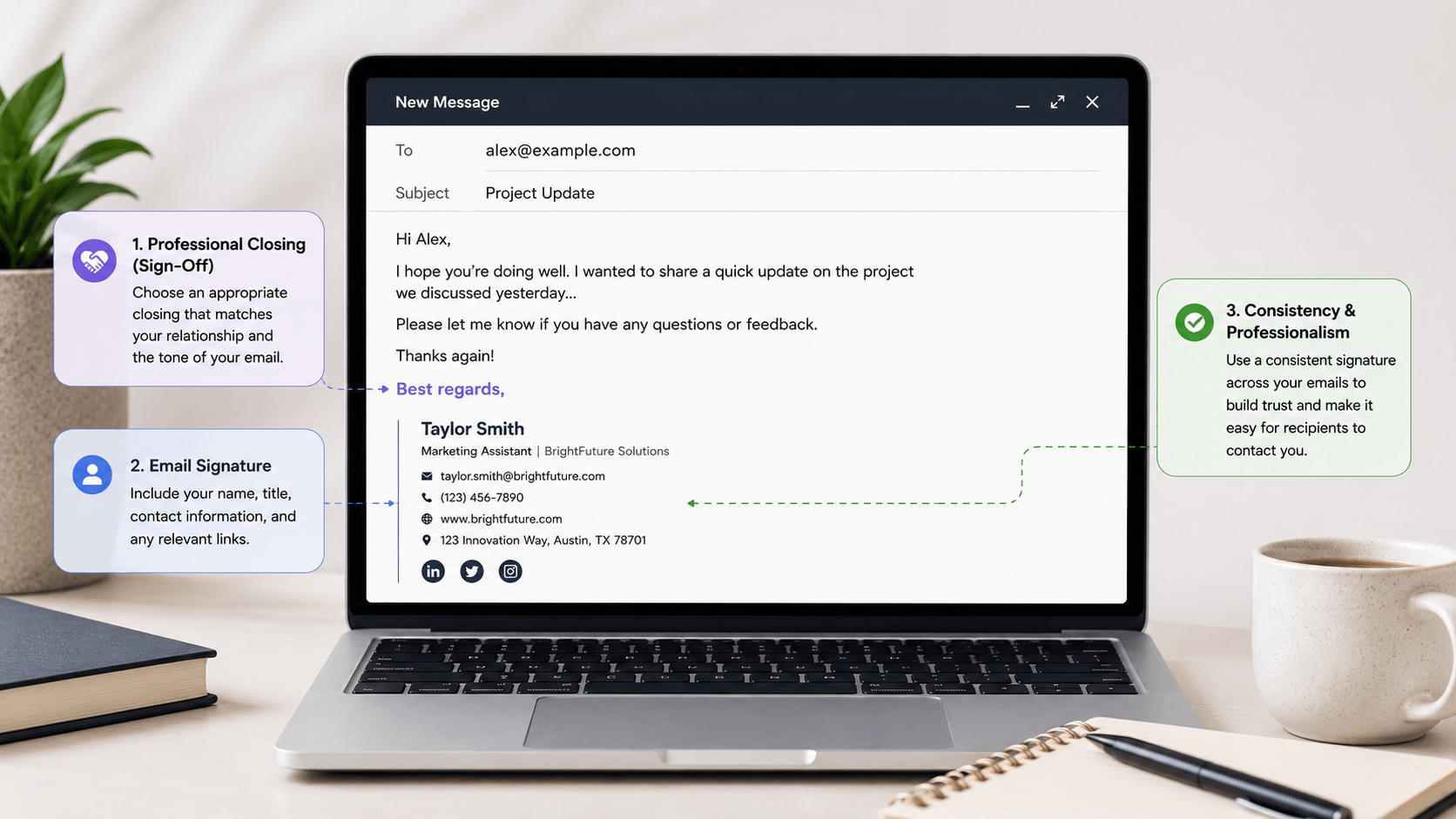
Signing an email sounds simple until you are staring at the bottom of a message to someone important and second-guessing whether "Best" is too casual, "Regards" is too cold, or "Thanks" is appropriate when you are not actually asking for anything. The closing of an email is a small but real signal about your professionalism and your read of the relationship.
This guide covers the three components of a complete email sign-off, when to use formal versus casual closings, and how to attach a signature to your email so the setup works automatically going forward.
The Three Parts of Signing an Email
Most people treat the bottom of an email as one thing. It is actually three separate elements that serve different purposes.
The closing word or phrase. This is the final word before your name. Best, Regards, Thanks, Sincerely. It sets the emotional tone of the ending.
Your name. In a casual email to someone who knows you well, just your first name is fine. In formal or first-contact emails, your full name is more appropriate.
Your email signature. This is the block of contact information below your name that appears automatically. It includes your title, company, phone number, and any other relevant details.
Getting all three right requires understanding the context of the email and the relationship with the recipient.
Professional Email Sign-Off Examples
Formal Closings
Use these for first contact emails, correspondence with senior leadership, legal or financial matters, and any situation where you want to signal respect and professionalism.
Sincerely is the most traditional formal closing. It is appropriate for cover letters, formal business proposals, and correspondence with people you have not met. It is not wrong, but it can read as stiff in everyday business email.
Respectfully is used when writing to someone in a position of authority, such as a government official, a university president, or a judge. It signals deference without being obsequious.
Yours truly is formal and somewhat old-fashioned. It works in legal correspondence and formal written communications but can feel out of place in digital business email.
With regards or Kind regards sits between formal and professional. It is warm enough to not feel cold and structured enough to not feel casual.
Professional Closings for Everyday Business Email
These work for the majority of professional email correspondence.
Best is the most commonly used professional closing in modern business email. It is warm without being overly familiar and works across industries and relationship types. When in doubt, Best is usually the right choice.
Best regards is slightly more formal than Best on its own. It works well in external business correspondence where you want a professional tone without full formality.
Regards is clean and neutral. It works in most professional contexts but can feel slightly cold in relationship-oriented industries. Use it when efficiency matters more than warmth.
Thanks or Thank you works when the email involves a request, a favor, or a response to help you have received. Using it when you are not actually thanking anyone for anything makes it feel hollow.
Appreciated is a slightly more specific version of Thanks. It signals that you recognize the effort involved, not just the outcome.
Casual Closings for Internal and Familiar Correspondence
These are appropriate for colleagues you know well, informal internal communication, and creative or startup environments where formality is low.
Cheers is widely used in British and Australian professional culture and has crossed over into American startup environments. It reads as friendly and confident.
Talk soon works when you genuinely expect a follow-up conversation. It creates a natural sense of continuity.
Take care is warm and personal. Use it with people you have an established relationship with.
Looking forward to it works well at the end of a planning email where the next step is already agreed upon.
Closings to Avoid
Warm regards is not wrong but has become so overused in corporate email that it often reads as a template rather than a genuine closing.
Have a blessed day is appropriate in some personal and religious contexts but can land awkwardly in professional correspondence with people you do not know well.
Yours on its own sounds incomplete in email. It works in handwritten letters but reads as unfinished in digital communication.
XOXO and similar personal closings are obviously inappropriate in professional contexts but occasionally appear in email from people who forget which thread they are in. Double-check your recipient before sending.
No closing at all is increasingly common in short back-and-forth threads, which is fine. But for any first contact, formal request, or external correspondence, some form of closing is still expected.
How to Sign an Email Based on Situation
Job application email:
Use a formal closing. Sincerely or Best regards followed by your full name. Include your full email signature with contact details even though the recipient can see your address in the header. Your signature reinforces your professionalism and makes it easy to reach you.
Thank you for considering my application. I look forward to the opportunity to speak further.
Sincerely, Jordan Mitchell jordan.mitchell@gmail.com +1 (415) 334-8821 linkedin.com/in/jordanmitchell
Emailing a professor:
Use a respectful but not overly formal closing. Best or Thank you followed by your full name and your student details.
Thank you for your time. I look forward to your response.
Best, Chloe Barnes Junior, Biochemistry | University of Arizona chloe.barnes@arizona.edu
Responding to a client:
Match the formality of the client's previous email. If they signed off with Cheers, meeting them there is appropriate. If they used Best regards, mirror that. When you are uncertain, Best is always safe.
Please let me know if you have any questions and I am happy to set up a call.
Best regards, Samuel Obi Account Manager | Northshore Consulting samuel.obi@northshoreconsulting.com +1 (646) 223-5590
Following up on a proposal:
A follow-up email benefits from a forward-leaning closing that signals expectation without pressure.
I am happy to answer any questions you might have as you review the proposal.
Looking forward to hearing from you, Dana Reyes dana.reyes@agencyname.com +1 (212) 778-3300
Internal team email:
Keep it simple and warm without over-thinking it.
Let me know if the timeline works on your end.
Thanks, Marcus
How to Attach a Signature to an Email
A manual sign-off works fine for individual emails, but an automated signature means you never have to type your contact information again. Here is how to attach one in the two most common email platforms.
In Gmail:
Click the gear icon in the top right corner of Gmail. Click See all settings. Stay on the General tab and scroll to the Signature section. Click Create new, name your signature, and type your contact information in the editing box. Under Signature defaults, set it as the default for New emails. Scroll to the bottom and click Save Changes.
Once configured, Gmail adds your signature automatically to every new email you compose.
In Outlook:
Open a new email window. Click Insert in the ribbon, then Signature, then Signatures. Click New, give your signature a name, and type your contact information in the editing box. Under Choose Default Signature, assign it to your email account and set it as default for New messages. Click OK.
Outlook will now insert your signature automatically in every new email.
On iPhone:
For Gmail on iPhone, open the app, tap the menu icon, tap Settings, select your account, tap Signature settings, and toggle on Mobile Signature. Type your signature in the text field.
For the built-in iPhone Mail app, go to Settings on your phone, scroll to Mail, tap Signature, and type your signature. This applies to all email accounts connected to the Mail app.
Building a Professional Email Signature
The closing phrase and name are easy to type manually. The signature block, with your contact details formatted consistently, is worth building properly once so it works automatically in every email.
ReverseToolkit's email signature generator lets you enter your details, choose a layout, and copy the formatted result into Gmail or Outlook in under two minutes. No account required and no watermark. Try it at ReverseToolkit Email Signature Generator.
Frequently Asked Questions
What is the best way to sign off a professional email?
Best is the safest and most versatile professional closing in modern business email. It works across industries, relationship types, and levels of formality. For more formal situations, Best regards or Sincerely are appropriate. For casual internal email with familiar colleagues, Thanks or Cheers both work well.
Should I write my full name or just my first name when signing an email?
Use your full name in first contact emails, formal correspondence, job applications, and any email where the recipient may not know who you are. Use just your first name in ongoing threads with colleagues and contacts who already know you.
Is it unprofessional to end an email without a closing?
In short back-and-forth reply chains, skipping the closing is common and accepted. For any first contact email, formal request, or external business correspondence, some form of closing is still expected. Ending abruptly without any closing can read as curt or dismissive.
Does the email signature appear automatically or do I have to add it every time?
Once you configure a default signature in Gmail or Outlook, it appears automatically in every new email you compose. You do not need to type it each time. You can also set a different default for replies versus new emails, which is useful if you want a shorter version for back-and-forth threads.
How do I sign an email if I am writing on behalf of someone else?
Use your own name and add a line indicating you are writing on their behalf. For example: Writing on behalf of Sarah Chen, Director of Operations. Your own contact information goes in the signature so replies come to you rather than creating confusion.
The closing of an email is worth three seconds of thought before you hit send. The right sign-off signals that you understand the relationship and the context of what you are asking. The right signature makes it easy for the recipient to follow up. Neither requires much effort once you have a default in place, and both contribute to a consistent professional impression across every email you send.