
How to Change Your Signature in Gmail | Step-by-Step Guide
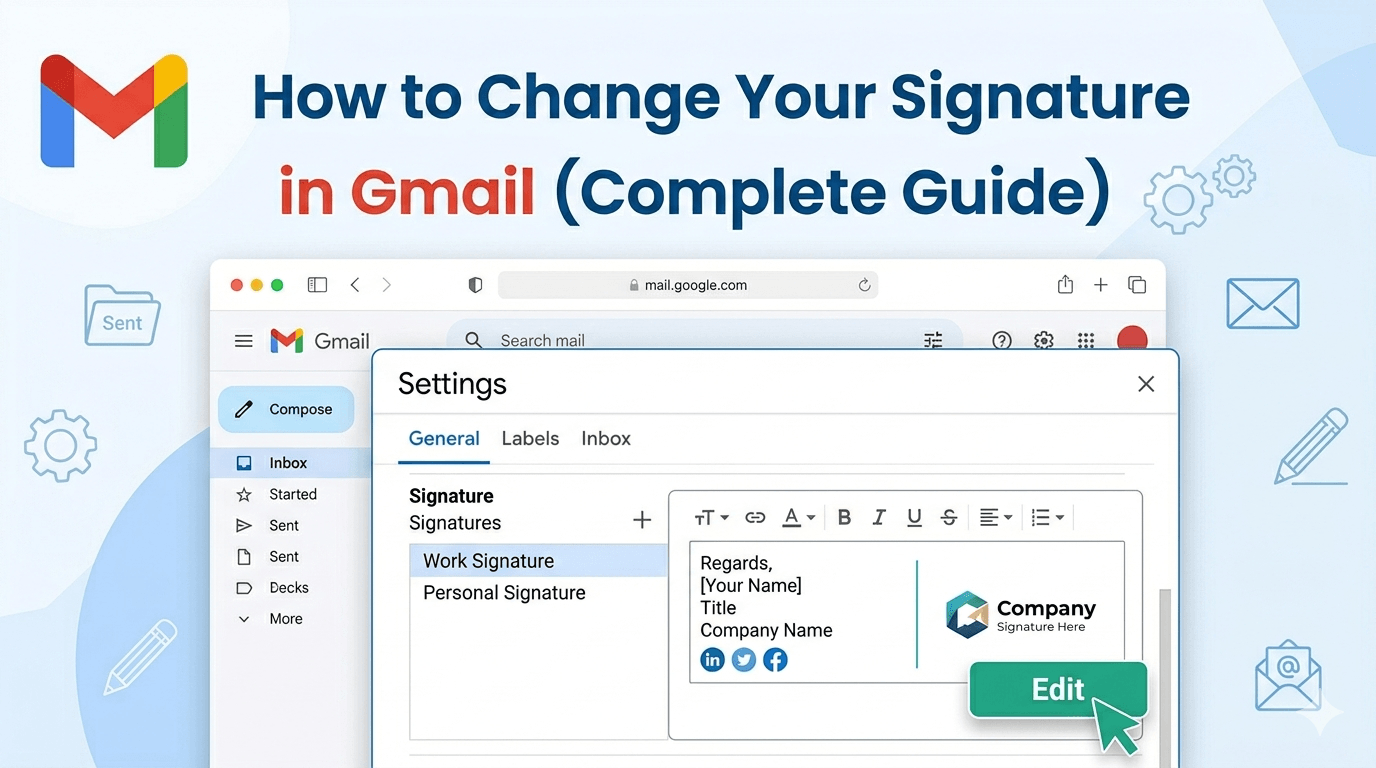
Where to Find Gmail Signature Settings
The signature setting is not in the main Gmail view. It is inside the full settings panel, which is different from the quick settings sidebar.
On desktop:
Click the gear icon in the top right corner of Gmail. A quick settings sidebar opens on the right. Do not look for the signature here. Instead, click See all settings at the top of that sidebar. This takes you to the full settings panel.
Click the General tab if it is not already selected. Scroll down the page until you reach the Signature section. It is roughly halfway down the General tab, below the Vacation Responder and above the Footer settings.
On mobile:
Open the Gmail app. Tap the three horizontal lines in the top left corner to open the menu. Scroll to the bottom of the menu and tap Settings. Select the email account you want to configure. Scroll down and tap Signature settings. Toggle on Mobile Signature and type your signature in the text field.
How to Create a New Gmail Signature
Step 1: Open Gmail on desktop and go to See all settings, then the General tab.
Step 2: Scroll to the Signature section. Click Create new.
Step 3: Give your signature a name. This is a label for your own reference. Click Create.
Step 4: A text editing box appears on the right side. Type your signature content here.
Step 5: Use the formatting toolbar below the text box to adjust fonts, sizes, colors, bold, italic, links, and images.
Step 6: Under Signature defaults, choose which signature to use for New emails and for Replies and forwards. You can also choose to have no signature on replies if you prefer a cleaner reply chain.
Step 7: Scroll to the bottom of the General tab and click Save Changes. Gmail does not auto-save signature changes. If you navigate away before clicking Save Changes, your edits will be lost.
How to Change an Existing Gmail Signature
Step 1: Go to Gmail settings by clicking the gear icon, then See all settings.
Step 2: Click the General tab and scroll to the Signature section.
Step 3: If you have more than one signature, select the one you want to edit from the list on the left side of the signature panel.
Step 4: Make your changes in the text editing box on the right.
Step 5: Scroll to the bottom of the page and click Save Changes.
This is the step most people miss. Gmail does not prompt you to save and gives no visible confirmation that changes were saved. Always scroll down and click Save Changes before closing the settings page.
How to Update Your Gmail Signature on Mobile
Updating a signature in the Gmail mobile app follows a slightly different path.
Step 1: Open the Gmail app and tap the three-line menu icon in the top left.
Step 2: Scroll down and tap Settings.
Step 3: Tap the email account whose signature you want to update.
Step 4: Tap Signature settings.
Step 5: Make sure Mobile Signature is toggled on.
Step 6: Tap the text field and update your signature.
Step 7: Tap the back arrow. Changes save automatically on mobile, unlike desktop where you must click Save Changes manually.
Note that the Gmail mobile app does not support rich formatting. You cannot add images, logos, or clickable links through the mobile signature editor. For a formatted signature, configure it on desktop. Gmail will use the desktop-configured signature in emails you compose on desktop. The mobile signature is a separate, plain-text version that applies only to emails sent from the mobile app.
How to Format a Gmail Signature Properly
Choosing the right font:
Gmail's signature editor supports the same fonts available in Gmail compose. For professional use, stick to the default Gmail font or choose Arial, Verdana, or Georgia. These render consistently across different email clients. Custom or unusual fonts may fall back to a default on the recipient's end, breaking your intended formatting.
Getting the sizing right:
Your name should be slightly larger than the rest of the signature, typically 12 to 14 points. Contact details and secondary information can be 10 to 11 points. Avoid making any part of your signature larger than your email body text.
Adding color strategically:
A small amount of color in your signature, such as your name or company name in your brand color, adds visual structure. Use color sparingly. A signature with too many colors looks inconsistent and unprofessional.
Line spacing and structure:
Avoid using blank lines to create spacing in Gmail signatures. They often render as large gaps in other email clients. Instead, use a single line break between sections and rely on font size differences to create visual hierarchy.
How to Add an Image or Logo to Your Gmail Signature
Step 1: Go to Gmail settings, then General, then scroll to the Signature section.
Step 2: Position your cursor in the signature text box where you want the image to appear.
Step 3: Click the image icon in the formatting toolbar below the text box. It looks like a small mountain and sun.
Step 4: You can insert an image in three ways. Upload from your computer, paste a web address (URL), or choose from Google Drive.
Using a URL is recommended for logos. Upload your logo to Google Drive, get the shareable link, and use that URL. Images inserted from a URL load from the web rather than being embedded in every email, which keeps your email file size smaller and prevents the image from appearing as an attachment.
Step 5: Once inserted, click the image to select it. Use the Small, Medium, Large, and Original size options that appear below the image to resize it. For logos, Small or Medium is usually appropriate.
If your logo has a white background that clashes with dark mode email views, convert it to a transparent PNG using a background removal tool before uploading it. A transparent PNG adapts to any background color the recipient's email client uses.
How to Set Up Multiple Signatures in Gmail
Gmail supports multiple signatures, which is useful if you write different types of emails that call for different levels of formality, or if you manage communications for multiple roles or projects.
Step 1: In the Signature section of Gmail settings, click Create new.
Step 2: Name the new signature clearly, for example "Formal" or "Brief Reply."
Step 3: Write and format the new signature in the text box.
Step 4: Click Save Changes at the bottom of the page.
Switching between signatures in an email:
When composing an email, click the pen icon at the bottom of the compose window. A dropdown appears showing all your saved signatures. Click the one you want to use for that email. The current signature is replaced with the selected one.
You can also set different default signatures for new emails versus replies, which is one of the most practical uses of multiple signatures. A full signature with your logo and all contact details works well for new outgoing emails. A shorter version with just your name and phone number is more appropriate for back-and-forth reply chains.
Gmail Signature Examples for Different Situations
Standard professional:
Rachel Torres Marketing Director | Clearfield Agency rachel.torres@clearfieldagency.com +1 (312) 456-7890 www.clearfieldagency.com
Short reply signature:
Rachel Torres Clearfield Agency | +1 (312) 456-7890
For college students:
Daniel Kim Economics and Data Science, Class of 2026 | Boston University daniel.kim@bu.edu linkedin.com/in/danielkim
For personal email:
Keep personal email signatures minimal. Your name and one contact method is enough. Avoid job titles or company information on personal accounts.
For freelancers:
Yuki Tanaka Brand and Web Designer yuki@yukitanaka.com +1 (503) 234-5678 yukitanaka.com
Building a Professional Gmail Signature
The Gmail signature editor handles basic formatting well enough for simple text signatures. For a signature with a logo, social media icons, and a structured layout, building it in a dedicated email signature generator first produces a cleaner result.
Create your signature in a generator, copy the formatted output, and paste it into the Gmail signature text box. Gmail preserves the formatting from pasted HTML content. ReverseToolkit's email signature generator works directly in your browser with no account or subscription needed. Build your signature and copy it into Gmail in under two minutes at ReverseToolkit Email Signature Generator.
Common Gmail Signature Problems and Fixes
The signature is not appearing in new emails.
Go to the Signature section in Gmail settings. Under Signature defaults, make sure your signature is selected for New emails rather than set to No signature. Click Save Changes after making any adjustments.
Changes to the signature keep disappearing.
This is almost always caused by navigating away from settings without clicking Save Changes. Gmail does not auto-save signature edits. After every change, scroll to the bottom of the General tab and click Save Changes before leaving the page.
The signature looks different in other email clients.
Gmail renders HTML signatures well internally, but other email clients handle formatting differently. Outlook, Apple Mail, and older webmail clients may strip certain styles. Use web-safe fonts, avoid background colors on text, and test your signature by sending an email to an address on a different email platform before using it for professional correspondence.
The logo in the signature is showing as an attachment.
This happens when the image was uploaded directly from your computer instead of being hosted online. Delete the image from your signature, upload it to Google Drive, get a shareable link, and re-insert it using the web address option in the image dialog.
The signature is appearing twice in replies.
You have a signature set for both New emails and Replies and forwards. Go to Gmail settings and under Signature defaults, set Replies and forwards to No signature or to your shorter reply signature.
Gmail is adding a dash separator above the signature in replies.
Gmail automatically adds a line above the quoted text and signature in reply chains. This is a Gmail formatting behavior that cannot be disabled. It does not affect how the signature appears in new outgoing emails.
Frequently Asked Questions
Does Gmail signature support HTML?
Yes. You can paste HTML directly into the Gmail signature text box. Gmail preserves most inline HTML formatting. CSS classes are stripped by most email clients, so use inline styles on any HTML elements you include.
Why does my Gmail signature look fine in Gmail but broken in Outlook?
Outlook has its own HTML rendering engine that handles CSS differently from web browsers. Avoid using advanced CSS, background images, or non-standard fonts in your signature. Stick to simple inline styles and web-safe fonts for the most consistent cross-client rendering.
Can I add a Gmail signature on iPhone?
Yes. Open the Gmail app on iPhone, tap the menu, tap Settings, select your account, tap Signature settings, and toggle on Mobile Signature. You can type a plain-text signature here. For a formatted signature with images, you need to configure it on desktop and compose from desktop or use the web version of Gmail on your phone browser.
How do I remove a Gmail signature completely?
Go to Gmail settings, then General, then scroll to the Signature section. Under Signature defaults, set New emails and Replies and forwards both to No signature. Scroll down and click Save Changes.
Can I use my Gmail signature in Google Workspace?
Yes. If your organization uses Google Workspace, Gmail signature settings work the same way as personal Gmail. Some organizations use Google Workspace admin-managed signatures that are applied automatically. If you cannot edit your signature, check with your IT administrator as they may have applied a company-wide signature policy.
Keeping your Gmail signature up to date is one of those small details that signals professionalism consistently across every email you send. The settings panel is not obvious the first time, but once you know where to find it, changes take under a minute. Set a reminder to review your signature whenever your role, contact details, or company information changes.