
Green Screen Remover: Remove Green Screen Free Online
Key takeaways
- ▸Green screen removal (chroma keying) is easy to do for free without professional software like Premiere or After Effects.
- ▸For still images, browser-based background removers provide a fast, software-free way to remove green backgrounds.
- ▸For video, OBS Studio (free/open-source), CapCut, and Canva are the most practical tools for high-quality results.
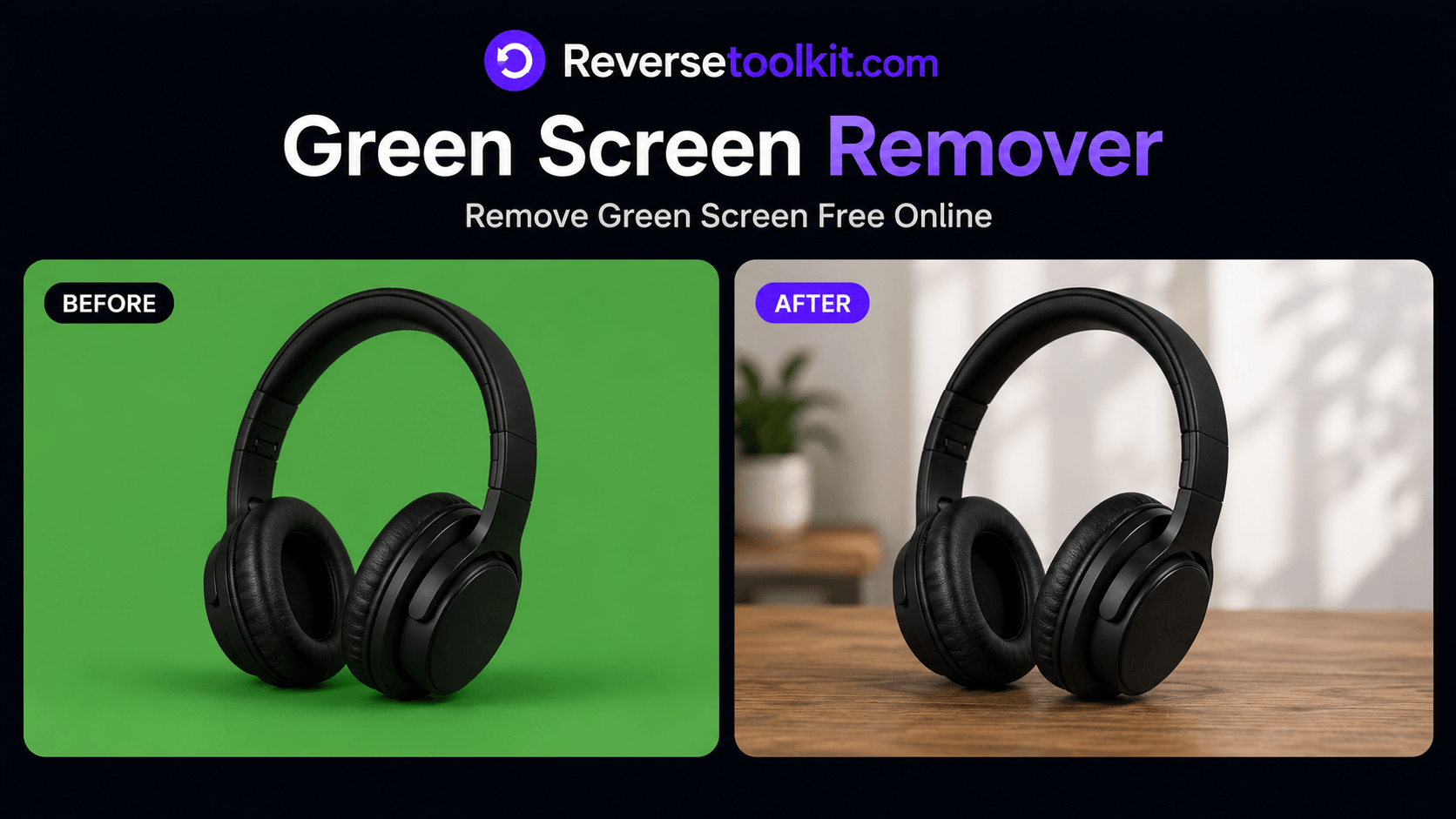
A green screen works because green is the color least common in human skin tones, making it easy for software to detect and separate the background from the subject. Removing it is called chroma keying, and while professional tools like Premiere Pro and After Effects do this well, they are not the only options. This guide covers free and accessible methods that work for images and video without a paid software subscription.
Why Green Screens Are Still Used
Digital backgrounds and AI background removal have become more common, but green screens still produce cleaner edges in controlled lighting conditions. When a green screen is lit evenly and the subject does not wear green, the separation between subject and background is nearly perfect. The result is a cleaner key than most AI tools can achieve on difficult footage.
The challenge for most people is not shooting on green screen. It is removing it afterward without the right software.
Method 1: Remove a Green Screen from an Image in Your Browser
For still images, a browser-based background remover handles green screens the same way it handles any other background color. The tool detects the subject and removes whatever surrounds it, regardless of whether it is green, white, or a complex scene.
Step 1: Go to ReverseToolkit Background Remover.
Step 2: Upload your image. The tool accepts JPEG, PNG, and WebP.
Step 3: The subject is detected automatically and the green background is removed.
Step 4: Download the result as a transparent PNG.
This works best when the green screen is evenly lit and there is clear contrast between the subject and the background. For product photos shot on green, event photos with portable green screens, and headshots, this method produces clean results in seconds.
Background Remover
Remove image backgrounds instantly in your browser. No uploads, no API costs.
Try Background Remover NowMethod 2: Green Screen Removal in OBS Studio (For Live Video and Recording)
OBS Studio is free broadcasting and recording software that includes a built-in chroma key filter. This is the most practical option for streamers, video creators, and anyone recording live footage on a green screen.
Step 1: Download and install OBS Studio from obsproject.com.
Step 2: Open OBS and add a Video Capture Device source or a Media Source depending on whether you are using a webcam or a pre-recorded file.
Step 3: Right-click the source in the Sources panel and select Filters.
Step 4: Click the plus icon under Effect Filters and select Chroma Key.
Step 5: Set the Key Color Type to Green. OBS will immediately apply the filter and remove the green background in the preview.
Step 6: Adjust the Similarity slider to expand or contract the range of green shades being removed. A value around 400 works for most well-lit green screens.
Step 7: Adjust the Smoothness slider to soften the edge between subject and background. Values between 80 and 100 reduce jagged edges without blurring the subject.
Step 8: Use the Key Color Spill Reduction slider to remove the green tint that green screens often cast on the edges of the subject. A value around 100 handles most cases.
OBS background removal works in real time, so you see the result immediately as you adjust. Once the settings look correct, they apply to every recording session automatically.
Method 3: Green Screen Removal in Canva (For Video Clips)
Canva includes a basic green screen removal tool for video in its Pro plan. It is not as precise as OBS or dedicated video editors, but it works for short clips and social content.
Step 1: Open Canva and create a new video project.
Step 2: Upload your green screen video clip to the Media panel.
Step 3: Drag the clip onto the canvas.
Step 4: With the clip selected, click Edit Video in the top toolbar.
Step 5: Select Background Remover. Canva detects and removes the green background automatically.
Step 6: Add a new background image or video on a layer below the clip.
Canva's green screen tool is straightforward and requires no manual threshold adjustment. For simple clips with a clean green screen, it produces acceptable results quickly. For complex footage with motion blur or uneven lighting, OBS or a dedicated editor will give better control.
Method 4: Green Screen Removal in CapCut (Free, Mobile and Desktop)
CapCut is a free video editor that includes a chroma key tool. It is available on iOS, Android, and desktop, making it accessible without any paid subscription.
Step 1: Open CapCut and start a new project.
Step 2: Import your green screen footage.
Step 3: Select the clip on the timeline.
Step 4: Tap or click Effects, then Video Effects, then Chroma Key. On some versions, this is found under Cutout, then Chroma Key.
Step 5: Use the color picker to sample the green from your background.
Step 6: Adjust the Intensity and Shadow sliders until the background is cleanly removed and the edges look natural.
Step 7: Add your replacement background on a lower layer.
CapCut handles green screen removal well for casual content and short-form video. The mobile version makes it easy to process footage directly on your phone without transferring files to a desktop.
Getting the Best Results from Green Screen Removal
The quality of your removal depends more on how the green screen was lit than on the software you use. Uneven lighting creates variations in the green shade, which confuse chroma key filters and leave patchy results.
Even lighting is the single most important factor. Two lights placed at 45-degree angles on either side of the screen, positioned to avoid casting shadows, will produce the cleanest key.
Distance between subject and screen matters. The subject should stand at least one meter away from the green screen to prevent green light from reflecting onto their clothing and skin. Green spill on the subject makes edge removal significantly harder.
Avoid green in the subject's clothing or accessories. Any green item in the frame will be removed along with the background.
Higher resolution footage keys more cleanly. Compressed video with heavy artifacting around edges makes precise chroma key removal harder. Shooting at the highest quality your camera supports reduces this problem.
When to Use a Different Color Screen
Blue screens are sometimes used instead of green, particularly in film production and in situations where the subject is wearing green. Blue spill is easier to remove from blonde hair and fair skin in some lighting conditions. For digital use, green screens are more common because camera sensors are more sensitive to green, producing a cleaner signal.
If you are shooting for video game streaming or screen capture content where your interface uses green elements, switching to a blue screen avoids conflicts with any green in your UI.
Frequently Asked Questions
Can I remove a green screen from a photo without any software? Yes. A browser-based background remover works without installing any software. Upload the photo, the tool removes the green background automatically, and you download a transparent PNG. The entire process takes under ten seconds.
Why does OBS leave a green fringe around the edges of my subject? This is caused by green spill, which is green light reflecting from the screen onto the edges of the subject. Increase the Key Color Spill Reduction slider in OBS to remove the tint. Moving the subject further from the screen when recording also reduces the amount of spill in the first place.
Does green screen removal work on video with motion? Yes. Chroma key filters apply frame by frame to video, so they handle motion naturally. Fast movement can sometimes create edge artifacts, which you can reduce by increasing the Smoothness setting in OBS or using a dedicated motion-aware editor for professional work.
What is the difference between green screen removal and background removal? Green screen removal is a specific type of background removal that targets a known color. Standard background removal uses AI to detect the subject regardless of what the background looks like. For images, AI background removal often produces cleaner results because it is not dependent on the background color being consistent or evenly lit.
Can I use a bedsheet as a green screen? Yes, with limitations. A wrinkled bedsheet creates uneven lighting and shadow variations that make chroma key removal inconsistent. If you use a bedsheet, iron it flat and light it as evenly as possible. A dedicated green screen fabric or paper roll produces noticeably better results for the same effort.
Green screen removal does not require expensive software. OBS handles live and recorded video for free with precise manual controls. CapCut covers mobile video without a subscription. For still images, a browser-based background remover is the fastest option available. The quality of your result depends mostly on how well the original footage was captured, not on which removal tool you use.